 HushScribe
Turn any video into SRT subtitles offline on Windows
Short answer: use a speech-to-text app that runs on your own PC and can export subtitle files. HushScribe reads the audio straight from your video (MP4, MKV, MOV, WEBM and more), transcribes it offline with Whisper speech recognition, and exports SRT or VTT subtitles with timestamps. Nothing is uploaded, and there are no minute limits.
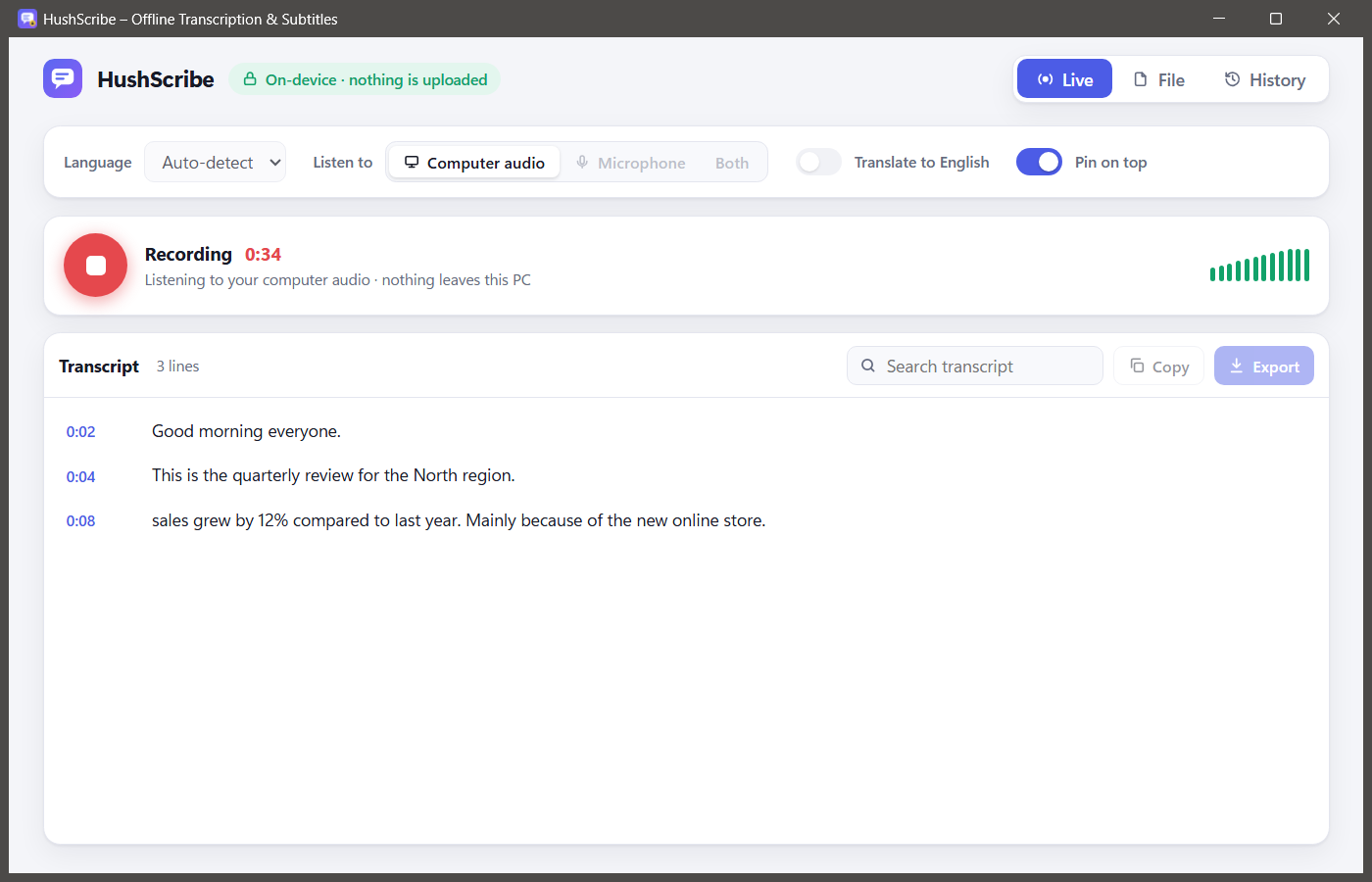
Try HushScribe free
Live captions you can keep and file transcription, offline on Windows 10 & 11. Try it free now, then pay once.
Tip: subtitles made by any speech recognition need a quick read-through before you publish them. Names, brands and technical words are the usual mistakes.
Your options, honestly
- YouTube auto-captions. Free, but only after you upload the video publicly or as unlisted, and you have to download and fix them afterwards.
- Online subtitle generators. Quick, but you upload your video to someone else's server, and most free plans cap the length or add a watermark.
- Free open-source tools such as Buzz or Subtitle Edit (which can run Whisper). Good options if you like tinkering; Subtitle Edit is also great for fixing timing by hand.
- A local app like HushScribe. Drag in a video, pick Fast or Accurate, export SRT or VTT. Offline, no account, pay once.
Step by step with HushScribe
- Open HushScribe and go to the File tab. Drag your video into the window, or click Choose a file. MP4, MKV, MOV, WEBM, MP3, WAV, M4A and more work, and you don't need to extract the audio first.
- Pick the quality. Fast is good for clear speech. Accurate (Whisper large-v3-turbo) copes better with accents, music and noisy recordings, but takes longer.
- Set the language. Auto-detect works for most videos. If the video starts with music or silence, choose the language yourself. To get English subtitles for a video in another language, turn on Translate to English.
- Press Transcribe. Lines appear as they are recognised, with their timestamps, and you can watch the progress bar. It all runs on your PC, so you can even switch off Wi-Fi.
- Export the subtitles. Click Export and choose Subtitles (.srt) for YouTube, VLC, Premiere or CapCut, or Web subtitles (.vtt) for HTML5 video players. You can also export plain text notes.
Then open the SRT in your video editor or player, check names and spelling, and you're done.
Good to know
- SRT and VTT are plain text files, so you can fix any line in Notepad or a subtitle editor.
- Speed depends on your PC: roughly real-time or faster on a modern laptop with Fast, slower with Accurate or on older machines. No graphics card is needed.
- Speaker names aren't added. Each subtitle is a line of speech with its start and end time.
Subtitles without uploading your video
Offline, no account, no minute limits. Try it free now, then pay once, yours forever ($4.99 in the US; the Store shows your local price).
FAQ
Which video formats work?
MP4, MKV, MOV, WEBM and most other common formats, plus audio files like MP3, WAV and M4A. HushScribe reads the audio track directly.
Can I make English subtitles for a video in another language?
Yes. Turn on Translate to English before you press Transcribe, and the subtitles come out in English.
Is there a length limit?
No. There are no minute limits and no subscription. Long videos just take longer on your PC.
Are the subtitles perfect?
Usually very good, but not perfect. Read them through before publishing, especially names and technical words. Accurate mode reduces mistakes.
Is my video uploaded anywhere?
No. Speech recognition runs on your own computer. You can unplug the internet while it works to check.