 HushScribe
Live captions for deaf and hard-of-hearing students on Windows
Short answer: Windows 11 has free Live Captions built in, and they work well for following along. If you also want to keep the captions as notes, pin them over your class window, and search them before an exam, a local app like HushScribe captions anything playing on your PC, saves every session, and runs offline so nothing is uploaded.
Try HushScribe free
Live captions you can keep and file transcription, offline on Windows 10 & 11. Try it free now, then pay once.
Your rights first: if you have a hearing loss, your school's disability or accessibility office can arrange accommodations such as professional captioning (CART) or a note-taker. Automatic captions are a useful extra, but they are not as accurate as a trained human captioner, so ask your school what you're entitled to.
Your options, honestly
- Windows 11 Live Captions (Win + Ctrl + L). Free, on-device and works with any audio, but the text disappears when you close it, so you can't review the lecture later.
- The meeting app's captions in Zoom, Teams or Google Meet. Free when the host enables them, but they depend on the host's settings and usually aren't saved for you.
- Professional captioning (CART) through your school. The most accurate option for live classes; ask your accessibility office.
- HushScribe. Captions anything playing on your PC or from your microphone, floats them on top of your class, and saves every session as searchable text. Offline, no account, pay once.
Set up HushScribe for your classes
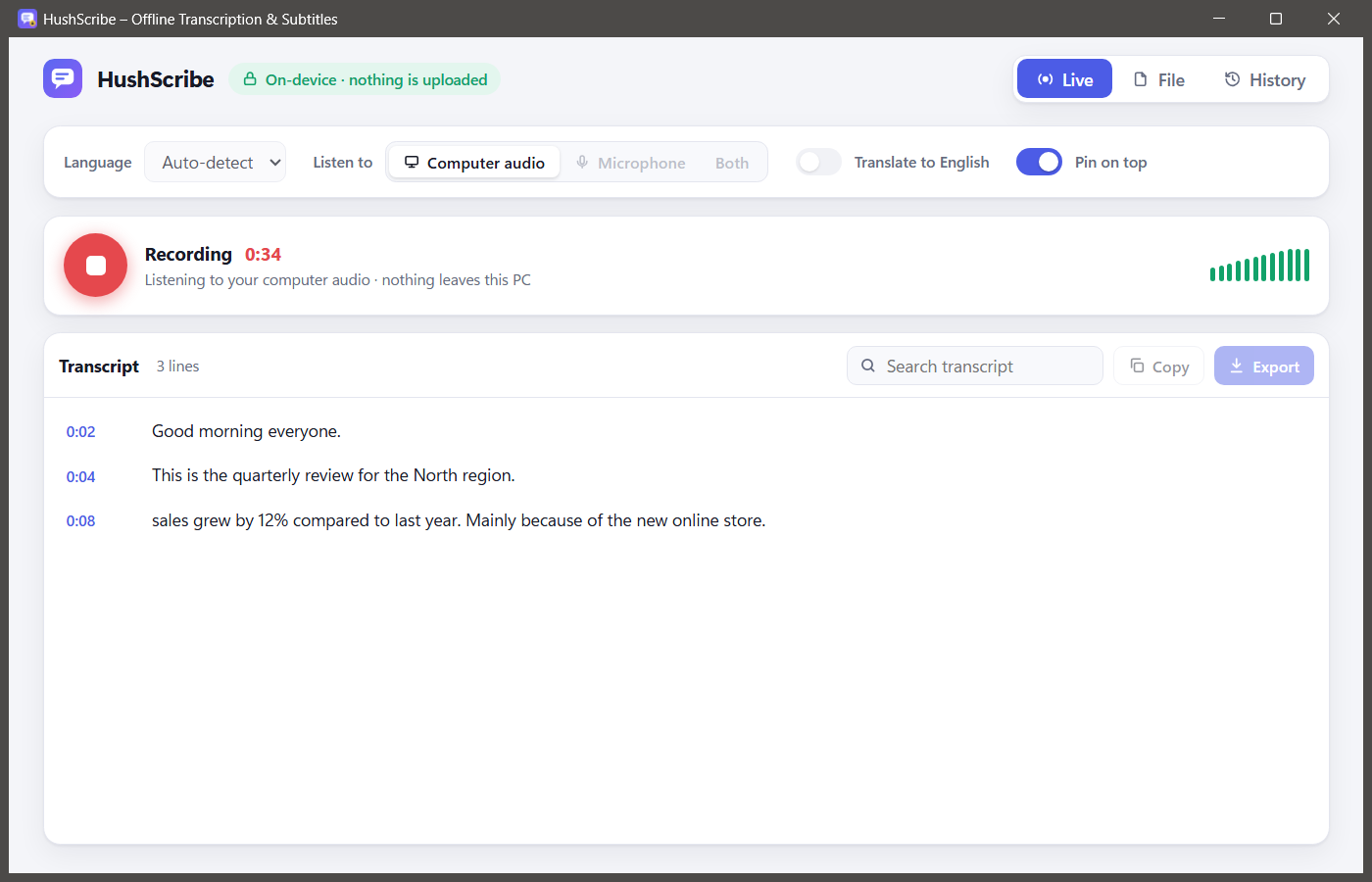
- Open HushScribe and stay on the Live tab. Choose Computer audio for online classes and videos. In a room, choose Microphone (a mic close to the speaker works much better than a laptop's built-in one).
- Turn on Pin on top. The captions window stays above Zoom, Teams, a browser or any video, so you can read and watch at the same time.
- Press record when class starts. Lines appear a few seconds after each sentence. The status line shows "nothing leaves this PC" while it listens.
- Press stop at the end. The whole class is saved automatically, with timestamps, in Documents\HushScribe Sessions and in the History tab.
- Review before the exam. Open the session from History, search for a word to jump to where it was said, and export the lines as text notes.
Missed part of a recorded lecture? Drop the recording into the File tab to get a full transcript.
Good to know
- Accuracy is best with clear audio. Strong accents, cross-talk and noisy rooms cause more mistakes; Accurate mode helps when you re-transcribe afterwards.
- Captions arrive a few seconds after each sentence, not word by word.
- Speaker names aren't labelled. Check your school's rules before recording a class, and ask the lecturer if in doubt.
Captions you can keep
Live captions for any class, pinned on top and saved as notes. Try it free now, then pay once, yours forever ($4.99 in the US; the Store shows your local price).
FAQ
Is this a replacement for professional captioning?
No. Automatic captions make mistakes that a trained captioner wouldn't. Use HushScribe alongside the accommodations your school provides, not instead of them.
Does it work with Zoom, Teams, YouTube and recorded lectures?
Yes. It captions any sound your PC plays, whatever the app or website.
Can I read the captions again after class?
Yes. Every live session is saved automatically, and you can search it and export it as text.
Does it need the internet?
No. Speech recognition runs on your own computer, so it keeps working on bad campus Wi-Fi or none at all, and nothing is uploaded.
What languages does it support?
It works best with English and major European languages, and auto-detect recognises about 99 languages. It can also translate speech into English text.