 HushScribe
Offline transcription software for Windows, compared
Short answer: for free live captions on Windows 11, use the built-in Live Captions. For free file transcription, open-source Whisper apps such as Buzz or Subtitle Edit work well if you don't mind a more technical setup. If you want live captions and file transcription in one simple app that saves everything, HushScribe does both offline for a one-time price.
Try HushScribe free
Live captions you can keep and file transcription, offline on Windows 10 & 11. Try it free now, then pay once.
Written by the HushScribe developer, so read it with that in mind. This page reflects our understanding in November 2026. Other tools change often, so check each project's own website for its current features.
At a glance
| Price | Live captions | Transcribe files | Keeps a transcript | |
|---|---|---|---|---|
| Windows 11 Live Captions | Free, built in | Yes | No | No |
| Buzz (open source) | Free | Basic live recording | Yes | Yes |
| Subtitle Edit (open source) | Free | No | Yes, for subtitles | Subtitle files |
| HushScribe | Try free, then pay once | Yes, any app and mic | Yes | Yes, searchable history |
Your options, honestly
- Windows 11 Live Captions. Free and built in. Great for following along live, but nothing is saved and it doesn't transcribe files. Not on Windows 10.
- Buzz. A free, open-source app that runs Whisper on your PC. Good for transcribing files if you're comfortable choosing models and settings.
- Subtitle Edit. A free, powerful subtitle editor that can run Whisper to create subtitles. Best if subtitles are your main goal and you want fine control over timing.
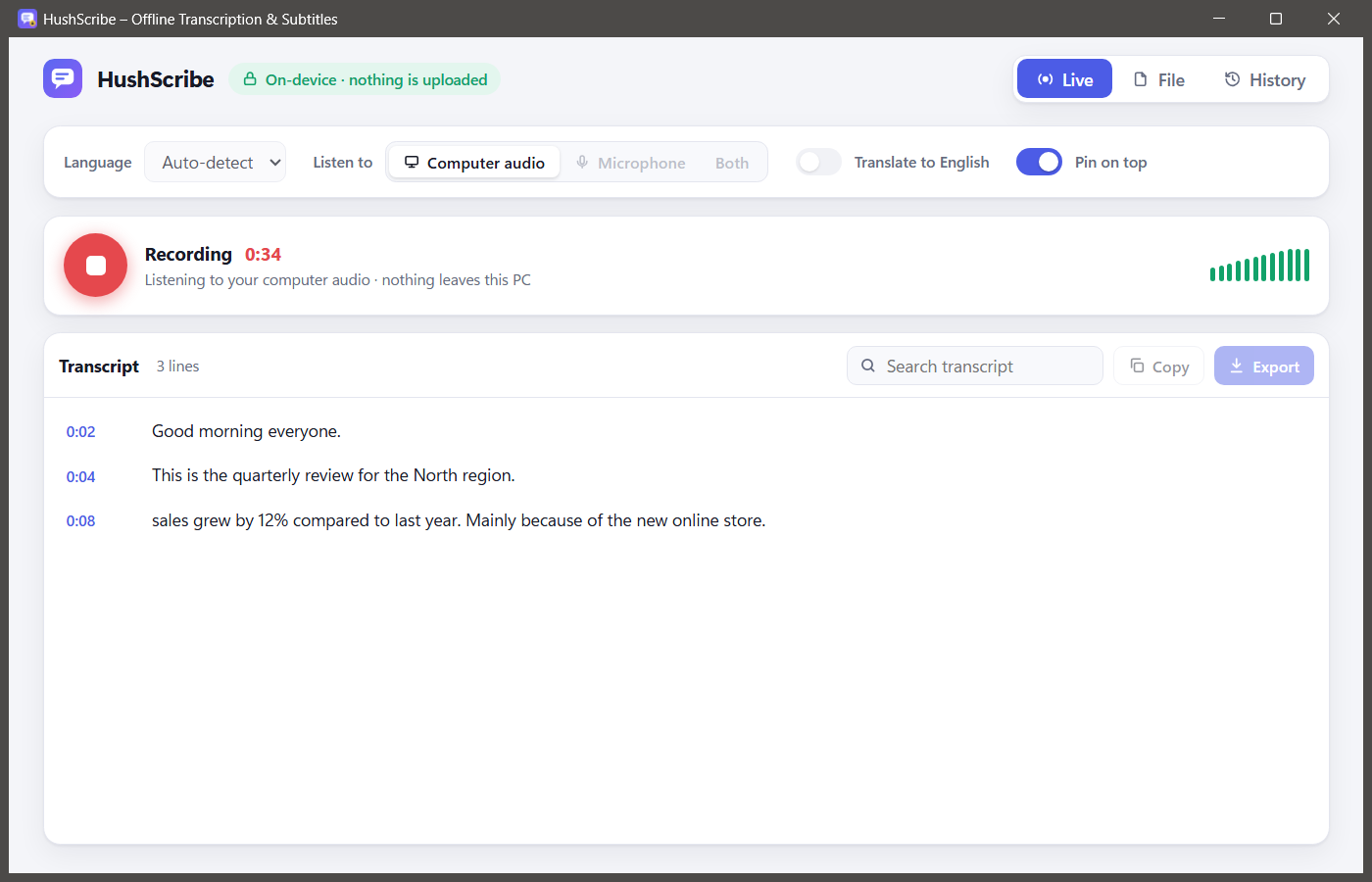
- HushScribe. Live captions for any app or your microphone, saved sessions you can search, and file transcription with TXT, SRT and VTT export. Simple to set up, offline, no account, pay once.
- Cloud tools such as Otter.ai or the transcription in Microsoft 365 are not offline: your audio is uploaded. They can add features like speaker labels and summaries.
How to choose
- Decide live or files. Live captions during calls and classes, transcripts of recordings, or both.
- Decide if you need to keep the text. If you want to search or export later, rule out tools that don't save anything.
- Check your PC. All Whisper-based tools run better on a faster PC. On an older laptop, use a smaller or faster model.
- Try before you pay. Test with one of your own recordings. Audio quality makes a bigger difference than the tool.
Need help deciding? Email hello@gethushscribe.com and tell us what you want to transcribe. We'll say honestly if a free tool fits better.
Good to know
- All offline tools are less accurate than a human captioner, and they all struggle more with crosstalk and noisy audio.
- Speaker labels are rare in offline tools. HushScribe doesn't have them yet.
- Offline means private: nothing is uploaded, and it keeps working without internet.
Live captions and file transcription in one app
Offline, no account, no minute limits. Try it free now, then pay once, yours forever ($4.99 in the US; the Store shows your local price).
FAQ
What is the best free offline transcription software for Windows?
For live captions, Windows 11 Live Captions. For files, open-source Whisper apps like Buzz or Subtitle Edit. They're free and capable, with a more technical setup.
Why pay for HushScribe if free tools exist?
It puts live captions, saved searchable sessions and file transcription in one simple app, and it also runs on Windows 10. Try it free first and decide.
Do these tools need the internet?
Not for transcribing. Some download a speech model the first time. HushScribe includes its models, so it works offline straight away.
Which one handles accents best?
Whisper's larger models handle accents well. In HushScribe, that's Accurate mode (large-v3-turbo).
Can any of them label speakers?
Most offline tools can't. HushScribe doesn't yet; if you need speaker labels, a cloud service may fit better.