 HushScribe
An offline alternative to Otter.ai for Windows
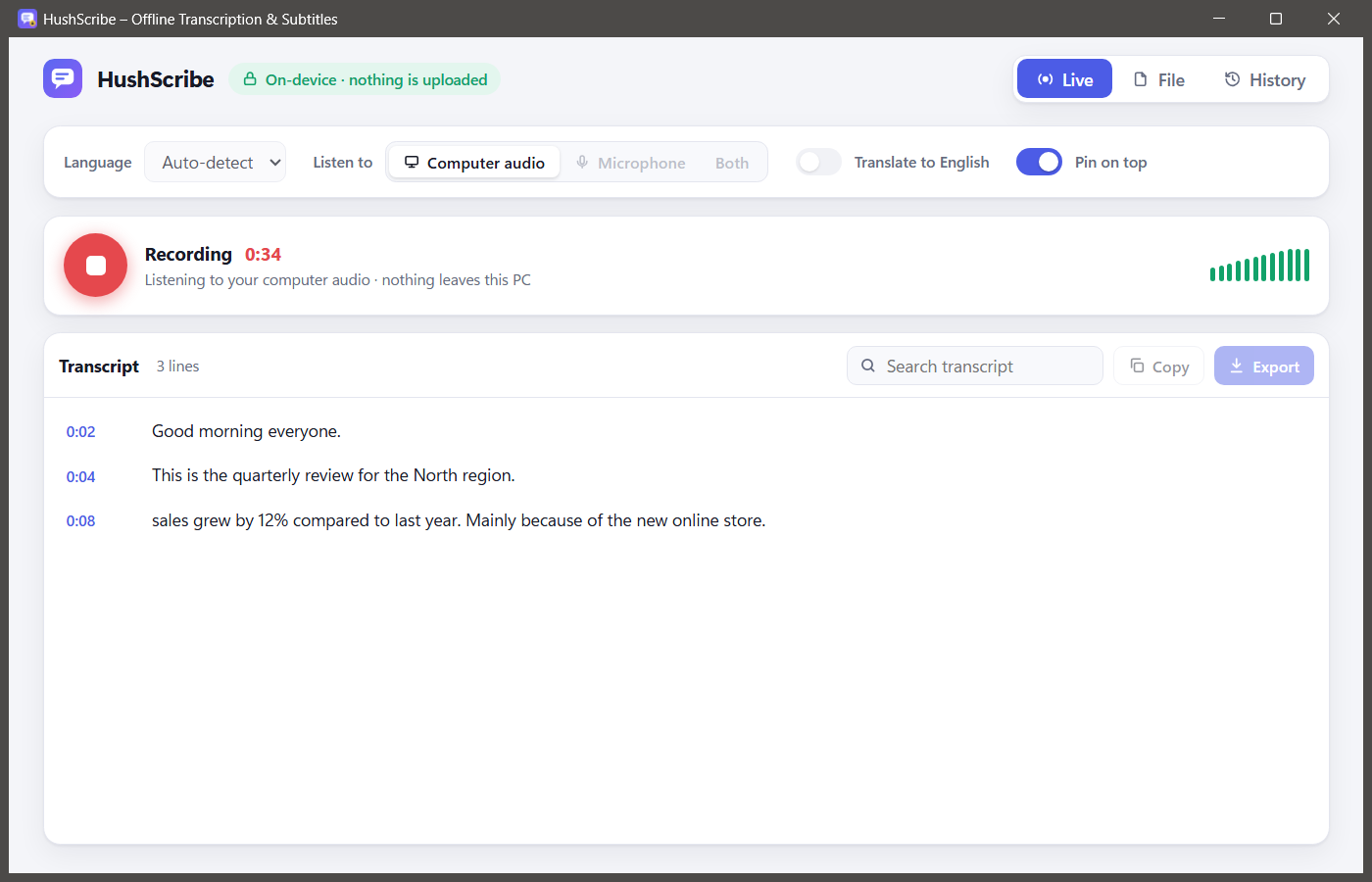
Short answer: if you want transcripts that never leave your computer, work without internet, and don't need a monthly plan, use a local speech-to-text app instead of a cloud service. HushScribe runs entirely on your Windows PC: live captions for anything you hear, saved sessions you can search, and file transcription with TXT, SRT and VTT export, for a one-time price.
Try HushScribe free
Live captions you can keep and file transcription, offline on Windows 10 & 11. Try it free now, then pay once.
Fair comparison: Otter.ai is a good product with features a local app doesn't have, such as cloud sync, team sharing and meeting assistants. HushScribe is not affiliated with Otter.ai; Otter.ai is a trademark of its owner. Check current plans and prices on each website.
Your options, honestly
- Choose a cloud note-taker like Otter.ai if you need speaker labels, automatic summaries, sharing transcripts with a team, or the same notes on your phone and computer.
- Choose an offline app like HushScribe if you don't want recordings uploaded (confidential meetings, interviews, medical or legal work), you often have poor internet, you only use Windows, or you'd rather pay once than every month.
- Free offline options also exist: Windows 11 Live Captions (live only, nothing saved) and open-source Whisper apps such as Buzz for transcribing files.
Switching to HushScribe
- Install HushScribe from the Microsoft Store. It runs on Windows 10 (1809 or later) and Windows 11, x64. There's no account to create.
- Capture meetings and classes live. On the Live tab choose Computer audio, Microphone or Both, and press record. No bot joins the call; it listens to your own PC's sound.
- Transcribe your existing recordings. Drop audio or video files into the File tab, including recordings you exported from other tools.
- Search and export. Every session is saved in History. Search any word, then export TXT notes or SRT/VTT subtitles.
Your files live in Documents\HushScribe Sessions, as normal audio and text files you own.
Good to know
- No speaker labels or AI summaries. You get a timestamped transcript.
- Windows only, and transcripts stay on the PC where you made them (copy the folder if you want them elsewhere).
- Accuracy depends on the audio. Accurate mode (Whisper large-v3-turbo) is slower but better for accents and noise.
Private transcripts, paid once
Offline, no account, no minute limits. Try it free now, then pay once, yours forever ($4.99 in the US; the Store shows your local price).
FAQ
Is HushScribe as accurate as Otter.ai?
For clear English speech, Whisper-based offline transcription is very good, and Accurate mode handles accents well. Results vary with audio quality, so try it free on your own recordings.
Can it join my Zoom or Teams meeting?
No, and that's on purpose. Nothing joins the call; it transcribes the sound playing on your PC. Always tell people when you transcribe a meeting.
Does it have speaker labels or summaries?
Not at the moment. If you need those, a cloud service may suit you better.
Is there a subscription?
No. You pay once on the Microsoft Store, with no minute limits.
Where are my transcripts stored?
On your own computer, in Documents\HushScribe Sessions. Nothing is uploaded.