 HushScribe
How to get live captions on Windows 10
Short answer: the Live Captions feature is only in Windows 11 (version 22H2 and later), so Windows 10 doesn't have it. On Windows 10 you can use Chrome's Live Caption for sound in the browser, the captions inside Zoom or Teams, or an app like HushScribe that captions any sound your PC plays or your microphone, works offline, and saves every session.
Try HushScribe free
Live captions you can keep and file transcription, offline on Windows 10 & 11. Try it free now, then pay once.
Not sure which Windows you have? Press Win + R, type winver and press Enter. If it says Windows 11, version 22H2 or later, you already have free Live Captions: press Win + Ctrl + L.
Your options, honestly
- Chrome Live Caption. Free and on-device: Chrome Settings → Accessibility → Live Caption. It only captions sound playing inside Chrome, supports a limited set of languages, and the text isn't saved.
- Captions in the meeting app. Zoom, Teams and Google Meet have their own captions. They depend on the app, your plan and the host's settings, and usually aren't saved for you.
- YouTube captions (the CC button). Free, but only for YouTube videos that have them.
- HushScribe. Captions any app, video or your microphone on Windows 10 and 11, pins them on top, and saves every session as searchable text. Offline, no account, pay once.
Live captions on Windows 10 with HushScribe
- Install HushScribe from the Microsoft Store. It needs Windows 10 version 1809 or later, 64-bit, and about 1.3 GB of free space. There's no account to create.
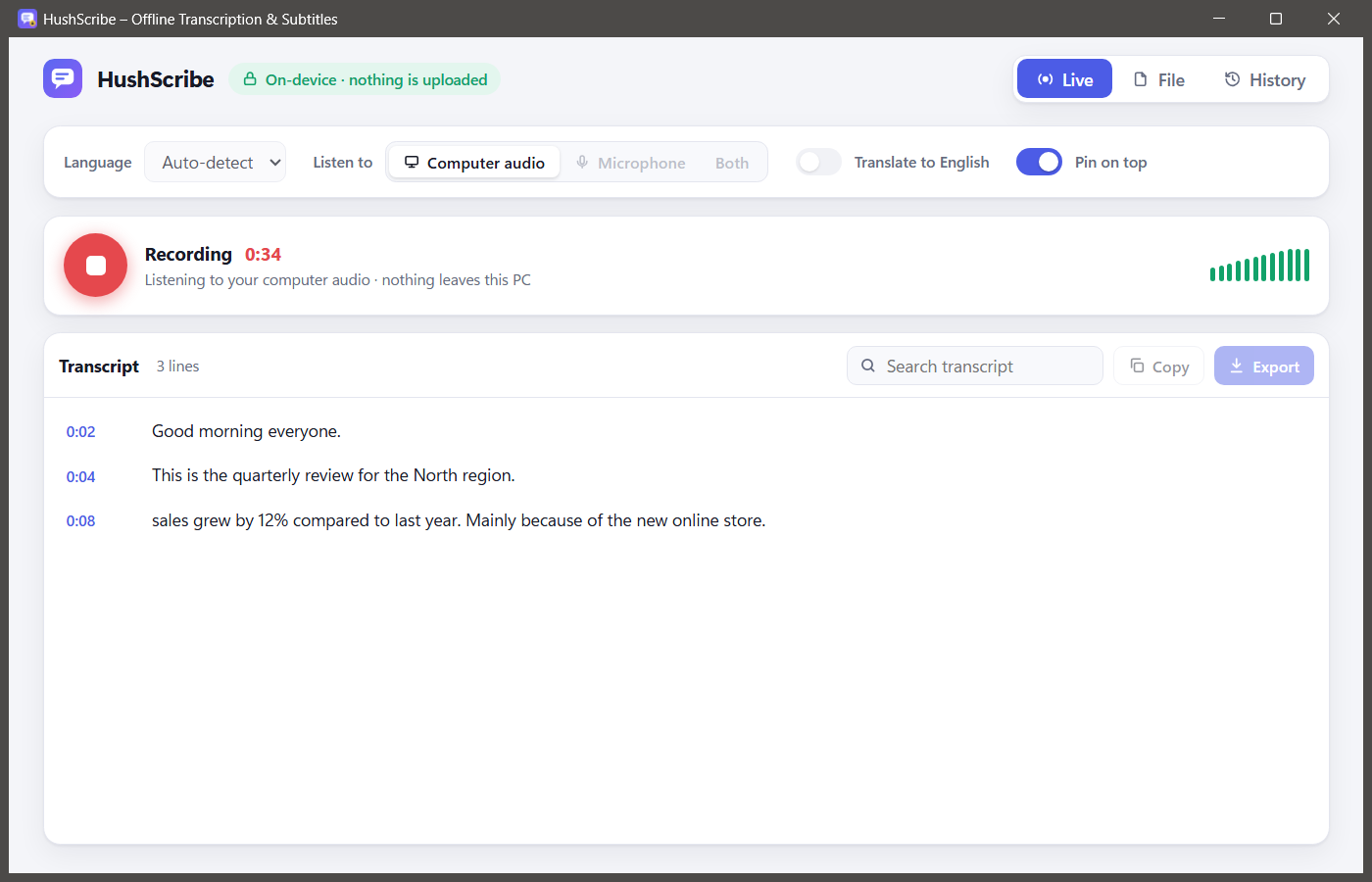
- Choose what to caption. On the Live tab pick Computer audio (videos, calls, lectures), Microphone (people in the room) or Both.
- Turn on Pin on top. The captions stay above your browser, Zoom, Teams or video player, so you can read and watch at the same time.
- Press record. Captions appear about a second after each sentence. It all runs on your PC, so it keeps working without internet.
- Press stop to keep it. The session is saved automatically in History. Search any word later, or export it as TXT, SRT or VTT.
Have a recording instead? Drop the audio or video file into the File tab to get a full transcript.
Good to know
- It runs on your CPU, no graphics card needed. On an older Windows 10 PC, use Fast mode; a faster PC gives better results.
- Automatic captions aren't as accurate as a human captioner, and crosstalk or noisy audio causes more mistakes.
- Speaker names aren't labelled. You get a clean, timestamped transcript.
Live captions for Windows 10, saved
Captions for any app, kept as searchable notes. Try it free now, then pay once, yours forever ($4.99 in the US; the Store shows your local price).
FAQ
Does Windows 10 have Live Captions?
No. Live Captions is a Windows 11 feature (22H2 and later). On Windows 10 you need a browser feature, the meeting app's captions, or a separate app.
Will Microsoft add Live Captions to Windows 10?
There's no sign of it. Microsoft ended support for Windows 10 in October 2025, and new features go to Windows 11.
Does HushScribe work on Windows 10?
Yes. It runs on Windows 10 version 1809 or later and Windows 11, 64-bit.
Can I save the captions?
Yes. Every live session is saved automatically, with the audio and a timestamped transcript you can search and export.
Does it need the internet?
No. Speech recognition runs on your own computer, and no audio is uploaded.